Your PDF will look
professional.
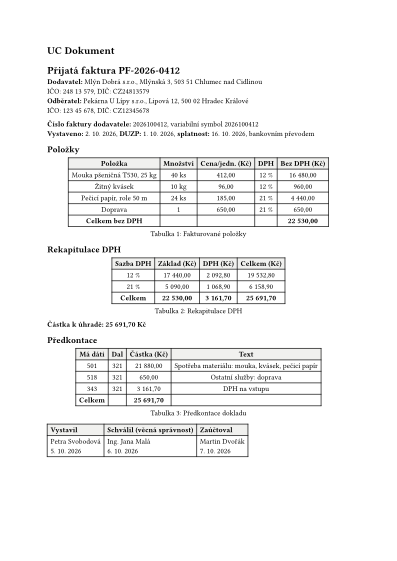
A template decides how your exported PDF looks: page size, margins, fonts, heading numbering, page numbers and the default citation style. Browse them without signing in and use the right one in one click.
Templates
Showing 9 templates
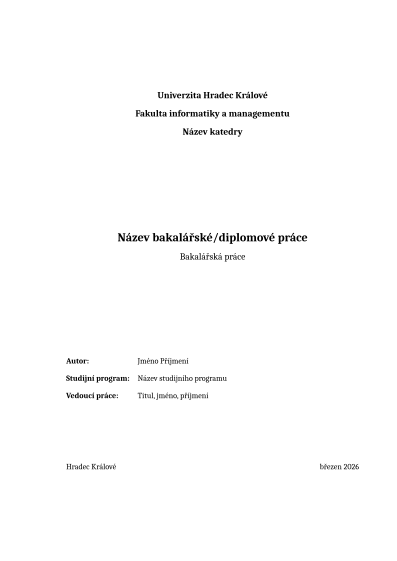
FIM UHK thesis
A bachelor's or master's thesis for the Faculty of Informatics and Management, University of Hradec Králové.
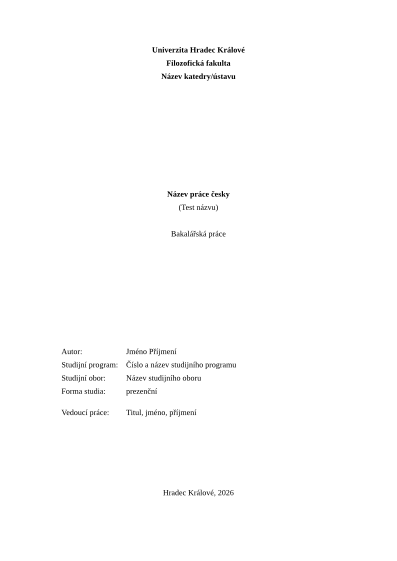
FF UHK thesis
A bachelor's or master's thesis for the Faculty of Arts, University of Hradec Králové.
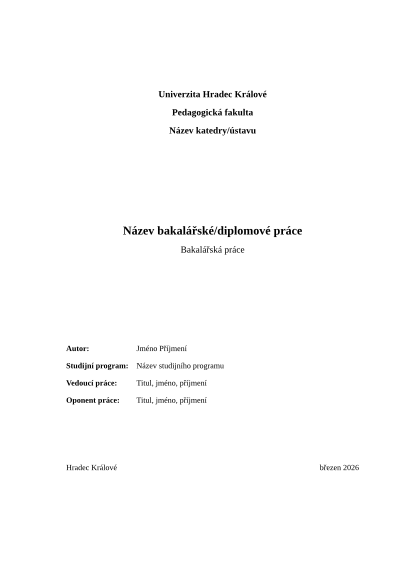
PdF UHK thesis
A bachelor's or master's thesis for the Faculty of Education, University of Hradec Králové.
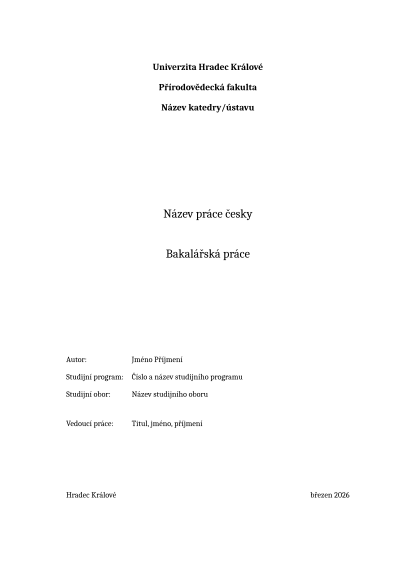
PřF UHK thesis
A bachelor's or master's thesis for the Faculty of Science, University of Hradec Králové.
How templates work
Write once, choose the look
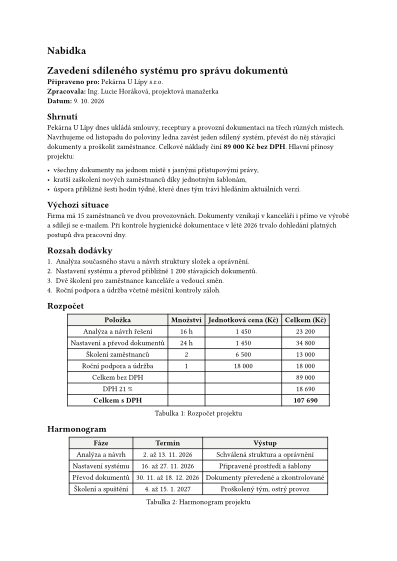
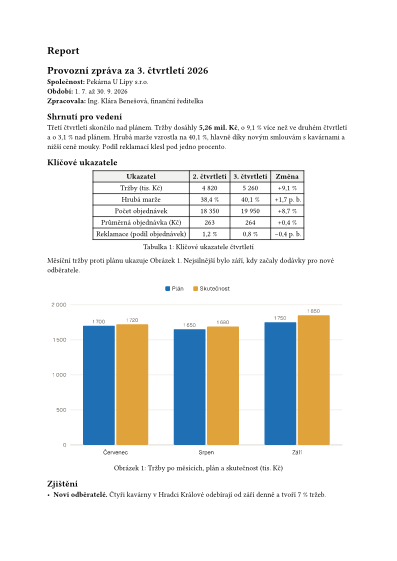
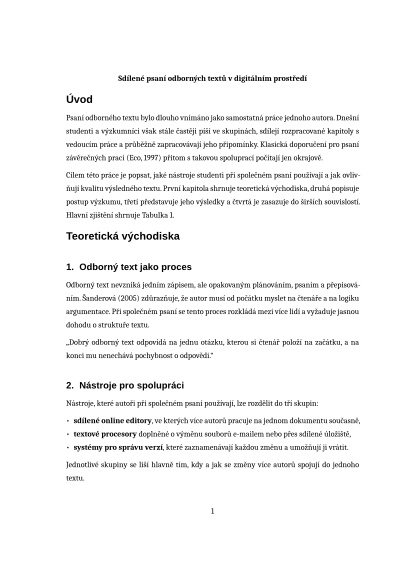
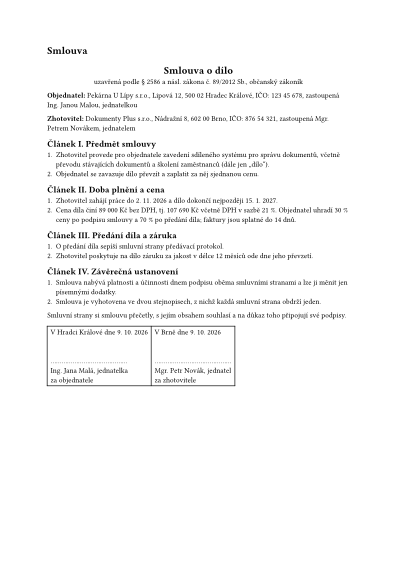
In the editor you write the content: text, tables, images, charts and formulas. When you export, you pick a template and it decides how the PDF looks. Try switching the template in the export dialog below.
Export as PDF
Export look
A template changes only how the PDF looks. The text, images and tables stay the same.
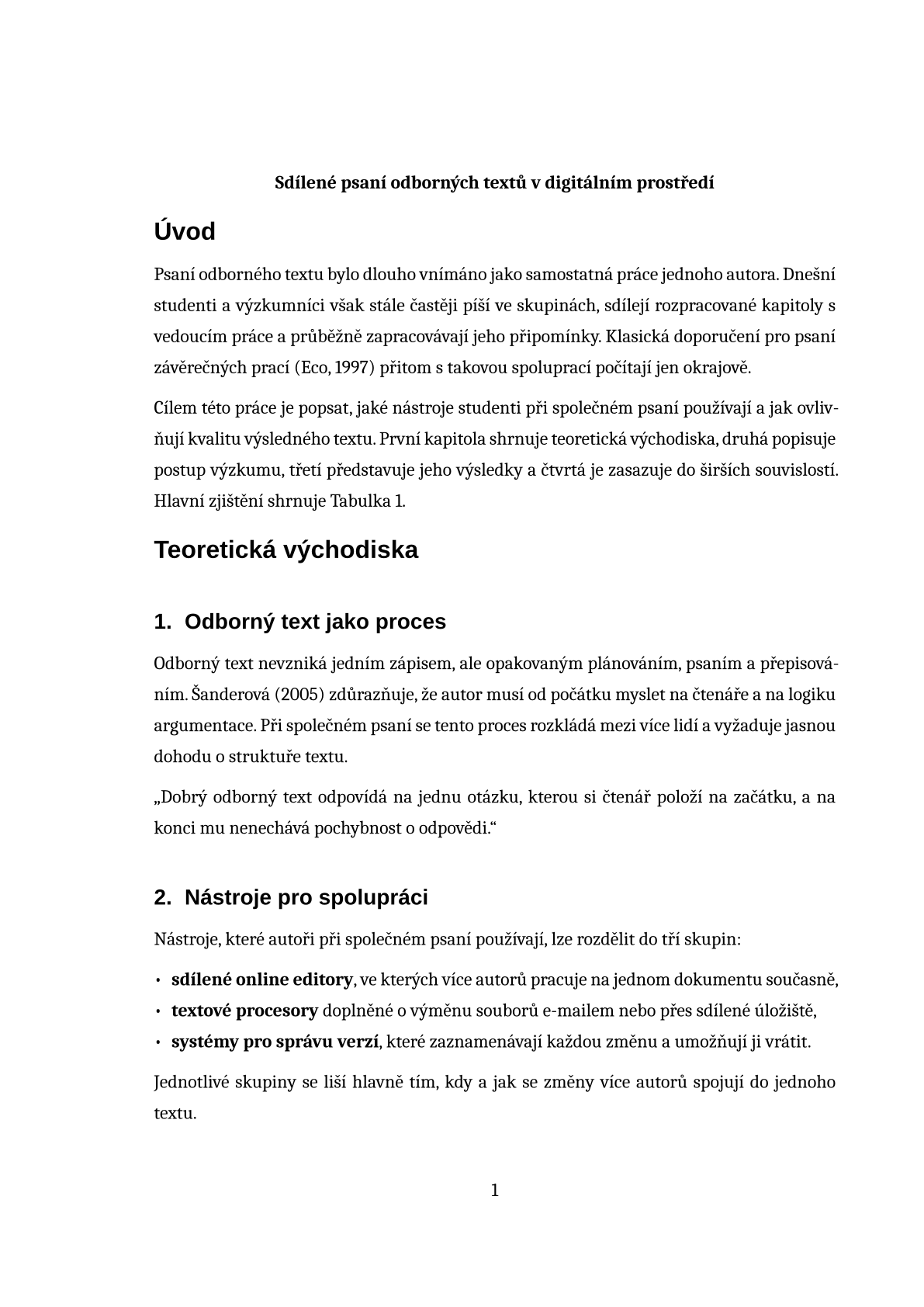
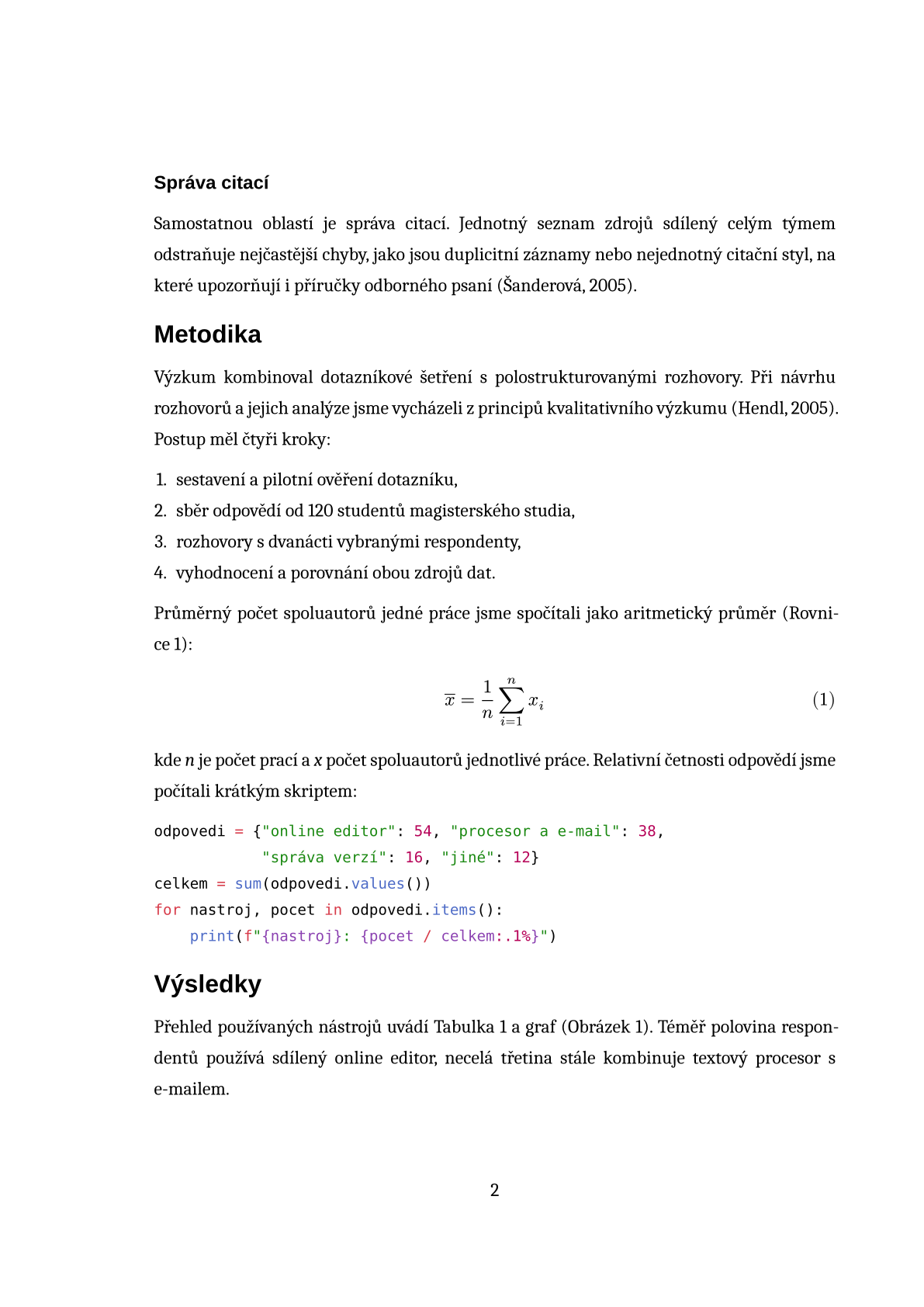
PDF preview
PDF preview in the Seminar paper template
Citations: APA 7
The template sets the look of the PDF
- Page size and margins
- Body typeface and size
- Heading typeface and numbering style
- Page number in the footer
- Default citation style and bibliography format
You write the content
- Text, headings and lists
- Tables, images, charts and diagrams
- Formulas, code samples and notes
- Citations and cross-references
- A title page with the details of your work, if you need one
- 01
Pick a template
Look through the sample PDF preview. You do not need to sign in for that.
- 02
Make it yours
Once you sign in, the template is copied to your space and offered on every export.
- 03
Write and export
Write the content in the editor, together if you like. The PDF gets its look from the template.
Start writing with a ready-made template
Pick a look, sign in and write. The template sets the typeface, margins, numbering and citations of the PDF.
No credit card required.